
Drafts is a new feature in Lovable that lets you make changes in a copy of your project instead of in the main version itself. Each draft has its own chat, its own preview and its own edits. Happy with it? Accept the draft and the changes land in your project. Not happy? Delete it and nothing has happened.
If you work with developers, you know this as a branch: a side track where you try something without touching the main line. The difference is that in Lovable you don't need to know a single technical term.
What is a draft in Lovable?
A draft is a copy of your project where you build separately from the main version. Nothing you do in a draft reaches your project until you accept it. And accepting doesn't change your live site yet either: that only happens when you publish.
Lovable uses six terms for this:
| Term | What it means |
|---|---|
| Main | The main version of your project. Only this version can be published. |
| Draft | A copy with its own chat, preview and edits. |
| Update | Brings newer changes from the main version into your draft. |
| Accept | Adds the draft's edits to your project. The draft is then finished. |
| Delete | Removes the draft and all its edits. Your project stays unchanged. |
| Publish | Makes the current main version live for visitors. |
Drafts are available on all plans. Creating, updating, accepting or deleting a draft uses no credits. You only pay for the messages you send in a draft, at the same cost as in the main version. Want to know more about credits? Read what Lovable costs.
What does it look like?
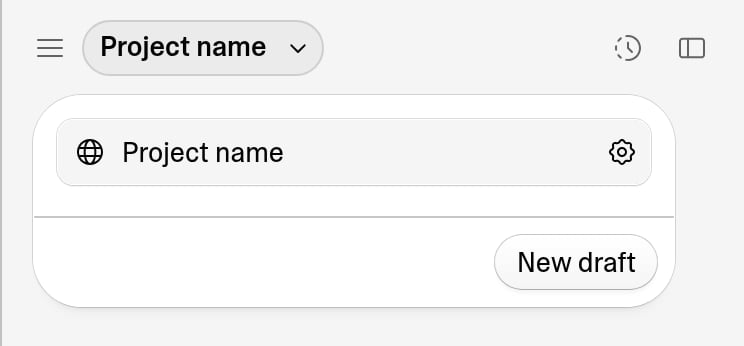
It all starts with the draft switcher. In the editor, click your project's name at the top. The main version sits at the top, with a button to the project settings beside it. Below that is the New draft button.
Source: Lovable documentation.
Click New draft and a copy of your project opens straight away. It's called Draft 1 at first; after your first prompt Lovable gives it a fitting name. You can also rename it yourself via the three-dot menu.
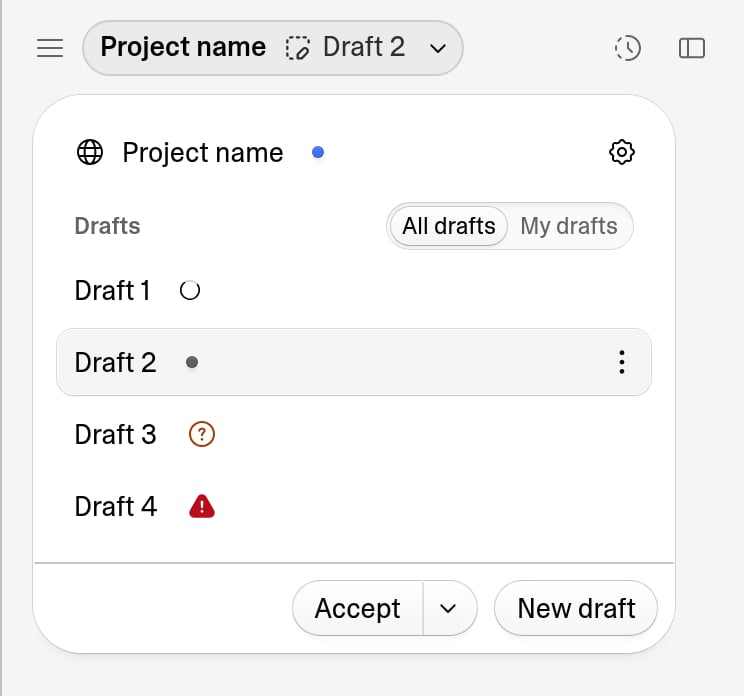
When you work with several drafts at once, the switcher shows the status of each one:
Source: Lovable documentation.
| Indicator | Meaning |
|---|---|
| Spinning circle | Lovable is working in that draft. |
| Gray dot | The main version has newer changes the draft doesn't have yet. |
| Blue dot | The draft has edits you haven't looked at yet. |
| Orange question mark | Lovable asked a question and is waiting for your answer. |
| Red triangle | The last action didn't finish. Hover over it to see why. |
The top row with your project name has a dot too. Blue means changes are ready to publish, green means your live site matches your project.
Tip: press Cmd+K (Mac) or Ctrl+K (Windows) to open the command palette and switch between drafts without a mouse.
How to work with a draft, step by step
- Open the switcher by clicking your project name at the top.
- Click New draft. You're now in a copy of your project.
- Build as usual. Every edit stays in the draft; the preview shows the draft's version.
- Compare. Switch between the main version and your drafts. The project name always shows which version you're in.
- Accept or delete. When accepting, you first get a short summary of what the draft changes. Confirm and the changes join your project's unpublished changes.
- Publish from the main version when you want the changes live. A draft has no publish button of its own.
Has the main version changed in the meantime? You can update the draft first. If you don't, Lovable does it automatically when you accept. If changes overlap, Lovable adjusts the draft's edits to fit.
Why is this useful?
Until now, every change went straight into your project. A failed experiment meant rolling back through version history, and comparing two ideas side by side wasn't really possible. Drafts fix that:
- Test a new design. Try other colours, fonts or a new layout and compare it with your current site before you choose.
- Compare copy. Write two versions of a headline or call to action in separate drafts and keep the best one.
- Prepare something for later. Build a sale banner or seasonal page now and accept it when the time is right.
- Collaborate without getting in each other's way. Everyone with edit access sees the same drafts, and you can see who's working in which draft. A colleague, freelancer or client can build in their own draft while you review the changes.
- Experiment calmly. No need to worry that a big prompt will turn your working site upside down.
Small things, like a typo, you can still fix directly in the main version. Drafts are optional.
What to watch out for
One thing matters: drafts share your backend and data. A draft keeps your app changes separate, but uses the same database, files and settings as your project. If you add or delete data while testing in a draft, that really happens.
If you ask for a new table or column in a draft, Lovable prepares it and adds it to the database once you accept the draft. Settings such as payments, email, storage and AI features apply to your whole project straight away, even when you turn them on from a draft.
Also: an accepted draft can no longer be edited, and a deleted draft can't be restored.
Our take
For our work with clients, this is one of the most useful additions of the past year. It makes it easier to show a client two directions, to prepare a bigger change while the site keeps running, and to have several people work on one project at the same time.
You still need to know what you're accepting. Read the summary before confirming, and test with data you can afford to lose when a draft touches the database.
Want to know more about the platform itself? Read our complete guide to Lovable or how to get started with Lovable. Curious about Chat mode? Read Lovable Chat mode.
Frequently asked questions
What are Lovable drafts?
Drafts are copies of your Lovable project where you make changes without touching the main version. Each draft has its own chat and preview. You accept a draft to keep the changes or delete it to discard them.
Do drafts cost extra credits?
No. Creating, updating, accepting or deleting a draft uses no credits. Messages in a draft cost the same as messages in the main version.
Does an accepted draft go live immediately?
No. Accepting adds the changes to your project, but your live site only changes when you publish from the main version.
Does a draft have its own database?
No. All drafts use the same database, files and settings as your project. Data you add or delete while testing is real.
Can several people work in drafts at the same time?
Yes. Everyone with edit access sees the same drafts and can see who's working in which one. The My drafts tab filters to the drafts you created.
Which plans include drafts?
All Lovable plans, including the free plan.
 Preferred source on Google
Questions, or just want to spar?
We're happy to think along — call, email or drop by in the heart of Eindhoven.